How to Run an LLM Locally: Ollama and LM Studio Guide
Every time you type into an online chatbot, your words travel to a company’s servers. For many tasks that is fine. But if you work with private documents, want to use AI without an internet connection, or simply do not want a monthly subscription, there is another option: run a large language model (LLM) locally on your own computer.
A few years ago this needed a research lab. Today free tools such as Ollama and LM Studio let you download and chat with capable open models in minutes. This guide explains what you need, which tools to use, how to install them step by step on Windows, macOS and Linux, how to pick the right model for your hardware, and what local AI can and cannot do.
Why Run an LLM Locally?
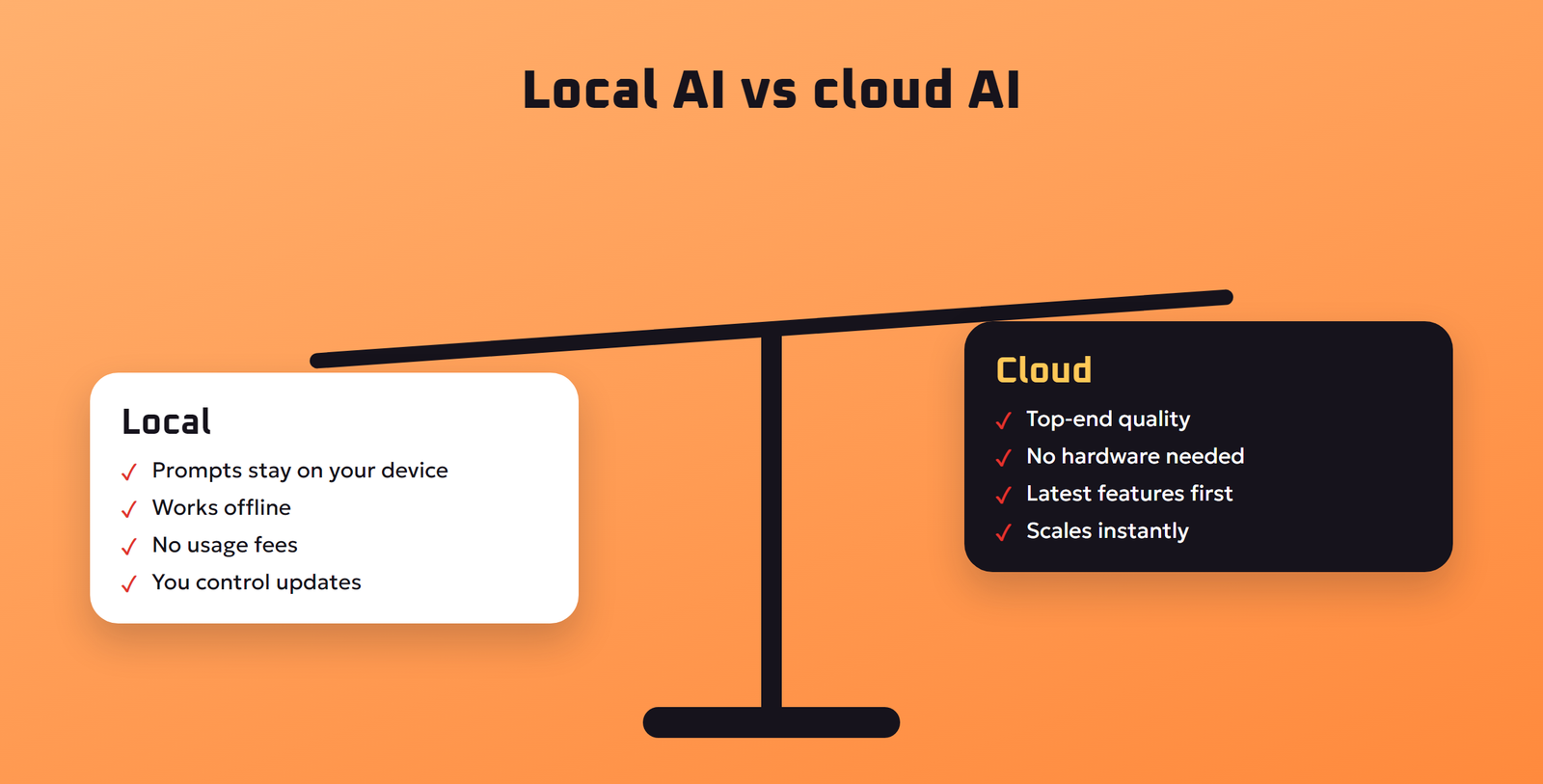
- Privacy. Your prompts and documents stay on your machine. Nothing is sent to an AI company.
- Offline use. Once a model is downloaded, it works without internet, on a plane or in a place with poor connection.
- No usage fees. The software and many models are free. You pay only for electricity and hardware you already own.
- Control. You choose the model, the settings and the updates. Nothing changes unless you change it.
- Learning and building. Local models are perfect for experimenting with AI apps, agents and document search without API bills.
The trade-off is power. The largest, smartest models still need data-center hardware, so a local model on a laptop will usually be less capable than the best online assistants. For many everyday tasks, such as summarizing, drafting, brainstorming, coding help and private document questions, local models are more than good enough.
What Hardware Do You Need?
The single most important number is memory: system RAM, and on PCs with a dedicated graphics card, video memory (VRAM). The whole model has to fit in memory to run at a usable speed.
A simple rule of thumb
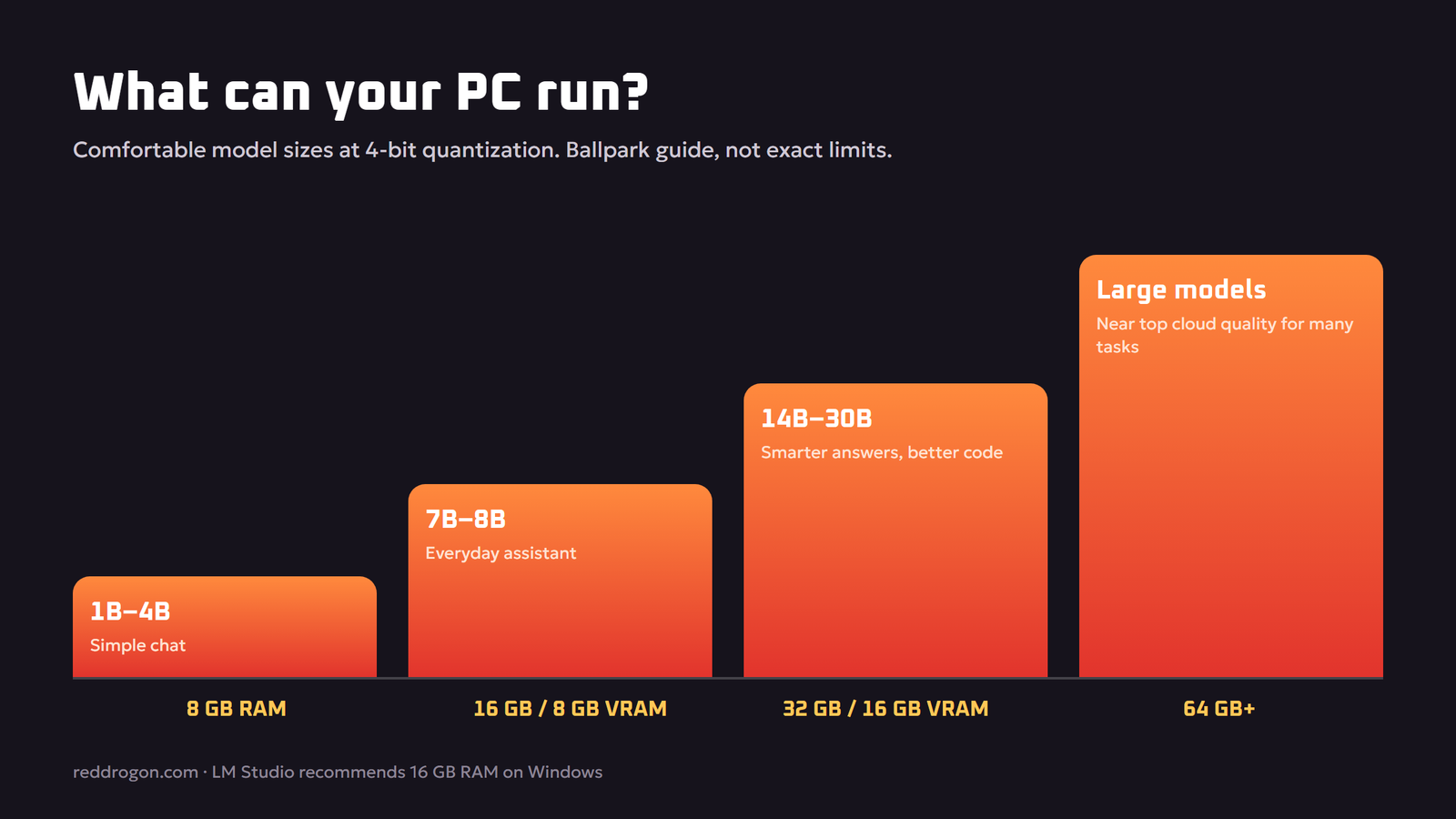
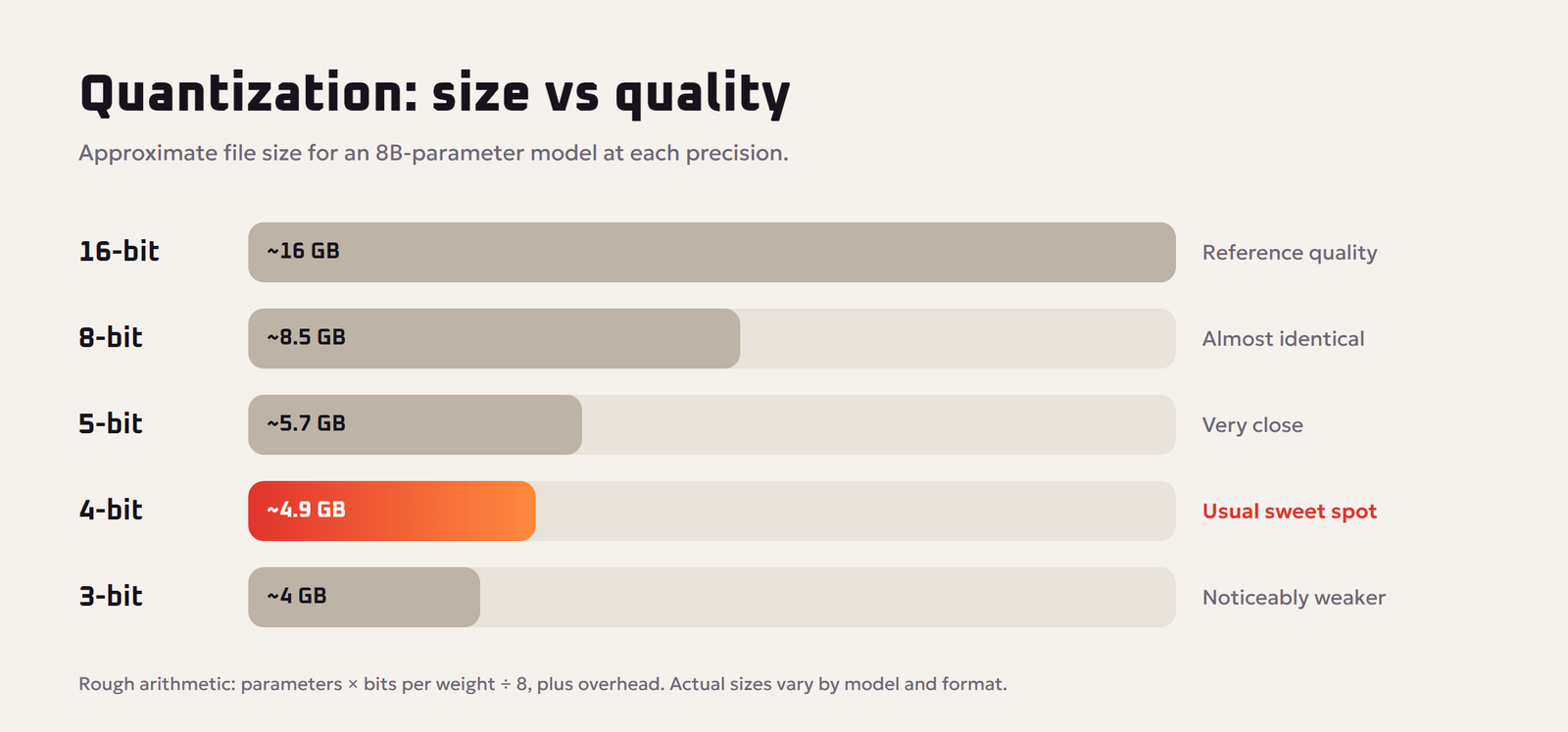
Model size is measured in parameters, such as 4B (4 billion) or 8B. Models are usually quantized, meaning their numbers are stored with fewer bits to save space. At the common 4-bit level, each billion parameters needs very roughly half a gigabyte, plus extra room for the conversation and the software itself. So a 7B or 8B model at 4-bit needs somewhere around 5 to 6 GB of free memory, while a 30B-class model needs closer to 20 GB. Treat these as ballpark numbers; exact needs depend on the model and settings.
| Your machine | Comfortable model size (4-bit) | What to expect |
|---|---|---|
| 8 GB RAM, no dedicated GPU | Small models, about 1B to 4B | Works for simple chat and summaries, can be slow |
| 16 GB RAM or a GPU with 8 GB VRAM | About 7B to 8B, sometimes 12B to 14B | Good everyday assistant, decent speed |
| 32 GB RAM or a GPU with 16 GB VRAM or more | About 14B to 30B-class | Noticeably smarter answers and better coding help |
| Apple Silicon Mac with 32 GB or more unified memory | Mid to large models | Unified memory lets the GPU use most of the RAM, which works very well |
| 64 GB or more, or multiple GPUs | Large models | Close to top online quality for many tasks |
For reference, LM Studio’s own system requirements recommend at least 16 GB of RAM on Windows, an x64 processor with AVX2 support, and at least 4 GB of dedicated VRAM; on Macs it supports Apple Silicon (M1 to M4) and recommends 16 GB or more, noting that 8 GB Macs may work with smaller models.
GPU or CPU?
A graphics card speeds things up dramatically because it can do many calculations at once. Without one, models still run on the processor, just more slowly. Apple Silicon Macs are a special case: their unified memory is shared between the processor and the GPU, which makes them excellent local AI machines for their price.
The Best Free Tools to Run LLMs Locally
| Tool | Type | Best for |
|---|---|---|
| Ollama | Command line plus a local API, with desktop apps | Simple setup, developers, connecting other apps |
| LM Studio | Desktop app with a chat window and model browser | Beginners who prefer clicking to typing commands |
| llama.cpp | Open-source engine | Advanced users who want maximum control and speed tuning |
| Chat front ends such as Open WebUI | Browser-based chat interface | A ChatGPT-style interface on top of Ollama |
Most beginners should start with either Ollama or LM Studio. Both are free, both download models for you, and both can run fully offline after setup.
How to Run an LLM Locally With Ollama
Step 1: Install Ollama
The official Ollama GitHub page lists these install methods:
- Windows: download the installer from the Ollama website, or run
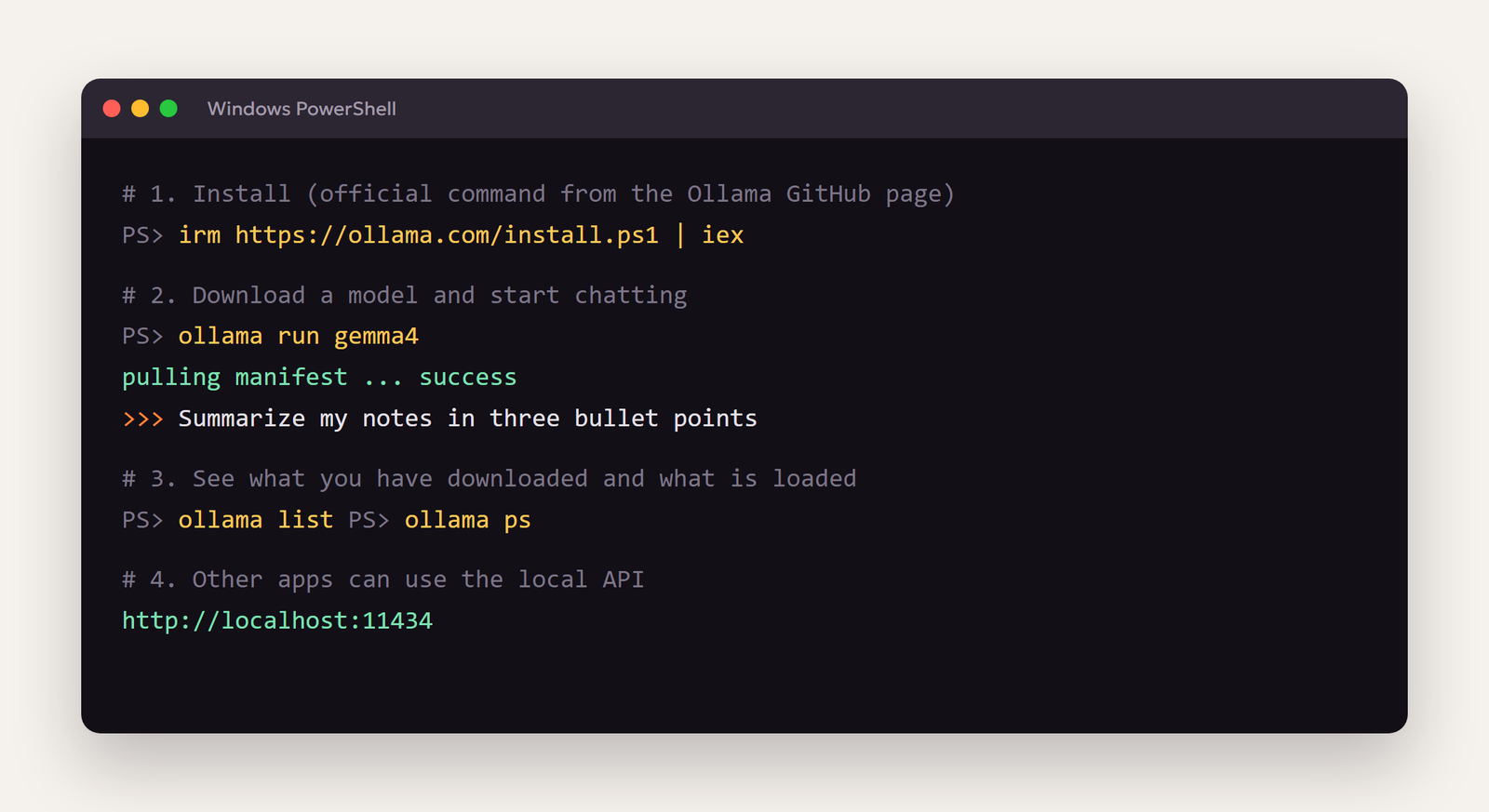
irm https://ollama.com/install.ps1 | iexin PowerShell. - macOS: download the app, or run
curl -fsSL https://ollama.com/install.sh | shin Terminal. - Linux: run
curl -fsSL https://ollama.com/install.sh | sh.
As with any command that downloads and runs a script, only use the official address shown on the Ollama site.
Step 2: Download and chat with a model
Open a terminal and run a model by name. The Ollama page uses ollama run gemma4 as its example. The first time, Ollama downloads the model, which can take a while depending on its size and your connection. When it finishes, you can type messages directly in the terminal.
Step 3: Learn the basic commands
ollama run model-namestarts a chat with a model, downloading it first if needed.ollama pull model-namedownloads a model without starting a chat.ollama listshows the models you have downloaded.ollama psshows which models are currently loaded in memory.ollama rm model-namedeletes a model to free disk space.
Step 4: Connect other apps
Ollama runs a local API on your computer at http://localhost:11434. Chat interfaces, coding tools, note apps and your own scripts can talk to it, so you get AI features that never leave your machine.
How to Run an LLM Locally With LM Studio
- Download LM Studio from its official website and install it.
- Open the model search, type a model family name, and pick a version. LM Studio shows whether a model is likely to fit your hardware.
- Download the model, then load it in the chat tab.
- Start chatting. You can adjust settings such as context length and temperature from the side panel.
- Optionally, start LM Studio’s local server so other apps can use the model.
LM Studio is the easiest way to compare several models side by side without touching a terminal.
How to Choose the Right Model
Open models come from many companies and research groups, and new versions appear constantly. Instead of chasing a specific name, use these criteria:
- Size that fits your memory. Start with the largest model that fits comfortably, then try smaller ones if it is too slow.
- Instruction or chat versions. Choose models labeled “instruct” or “chat” for conversation, not “base” models.
- Specialists. Coding models are better for programming, and some models are tuned for reasoning, vision or specific languages.
- Quantization level. 4-bit versions are the usual sweet spot. Higher-bit versions are a little smarter but need more memory.
- License. Check the model’s license if you plan to use it in a commercial product.
- Language support. If you need Urdu, Hindi, Arabic or another language, test it, because quality varies a lot between models.
Speed Tips for Local LLMs
- Use the GPU. Make sure your graphics drivers are up to date so the tool can use the GPU.
- Close heavy apps. Browsers with many tabs and games compete for the same memory.
- Pick the right size. A smaller model that fits fully in VRAM is often faster and more pleasant than a larger one that spills into system RAM.
- Keep the context reasonable. Very long conversations and huge pasted documents use more memory and slow responses.
- Keep the model loaded. The first message after loading is slower; later ones are faster.
What Can You Do With a Local LLM?
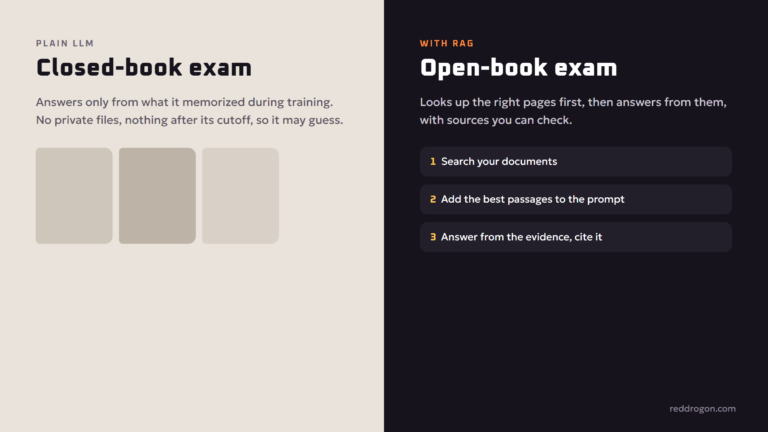
- Private document Q&A. Combine a local model with retrieval to ask questions about your own files. Our guide to retrieval augmented generation explains how it works.
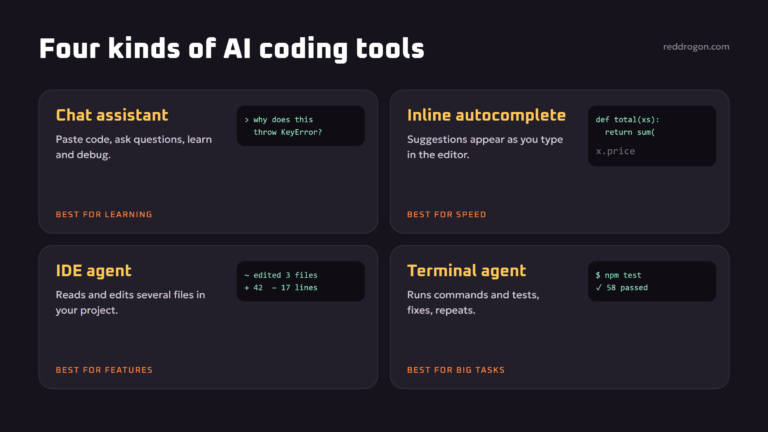
- Coding assistant. Many code editors can connect to a local model for completions and explanations. See our guide to ai for coding.
- Writing and summarizing without sending drafts to the cloud.
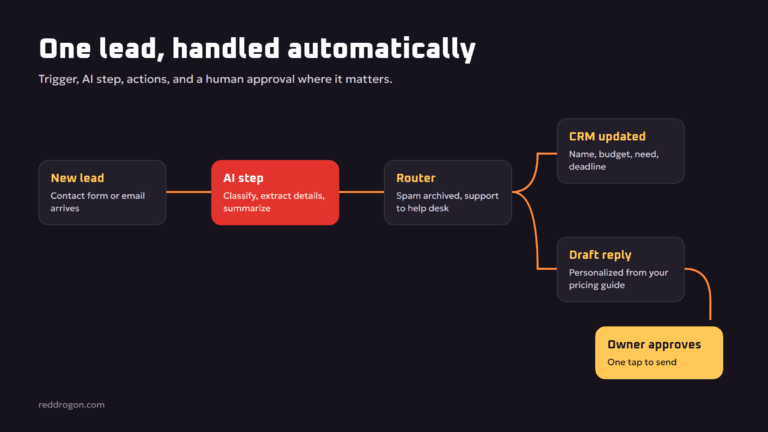
- Automation. Self-hosted automation tools can call your local model for private workflows. Read more in ai automation for small business.
- Experimenting with agents. Local models are a cheap way to learn how agentic ai works.
- Local image generation. Image models can also run on your own GPU, as we explain in how ai image generators work.
Limits and Safety of Local AI
- Lower top-end quality. Small local models make more mistakes on complex reasoning and niche facts than the best cloud models.
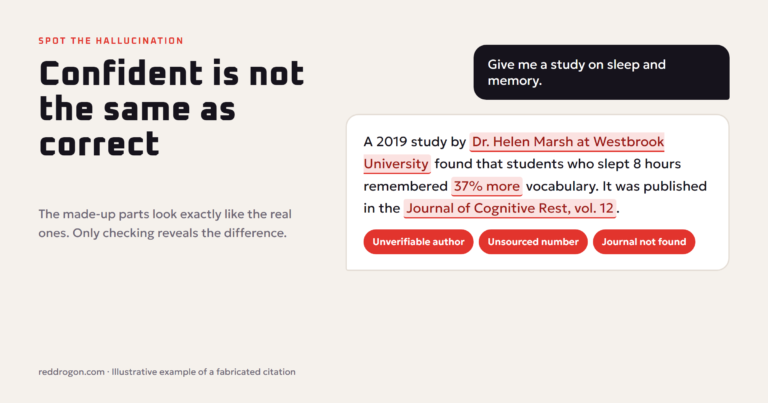
- Hallucinations. Local models invent facts too. Verify anything important. Our guide to ai hallucinations explains how to reduce them.
- Download only from trusted sources. Get models through the official tool or well-known model hubs, and be careful with random files from unknown websites.
- Local is not automatically secure. If you expose the local API to your network or the internet, anyone who can reach it can use your model. Keep it on your own machine unless you know how to secure it.
- Heat and battery. Running models works your hardware hard. Expect fans to spin up and laptop batteries to drain faster.
For broader advice about protecting your data when using AI tools, read our ai privacy and safety guide.
Troubleshooting Common Local LLM Problems
The model is extremely slow
The model is probably too big for your memory and is spilling into slower storage, or it is running on the CPU instead of the GPU. Try a smaller model or a lower quantization, close other heavy apps and update your graphics drivers.
Out of memory errors
Choose a smaller model, reduce the context length setting, or unload other models first. In Ollama, ollama ps shows what is currently loaded.
The answers are poor or repetitive
Make sure you are using an instruction or chat version of the model, not a base model. Try a different model family; quality varies a lot between models of the same size. Clear prompts help small models even more than large ones, so see our prompt engineering guide.
The download keeps failing
Large model files can be many gigabytes. Check free disk space and use a stable connection. Both Ollama and LM Studio can resume or retry downloads.
Other apps cannot connect
Check that the local server is running and that the app points to the right address, such as http://localhost:11434 for Ollama. Firewalls and security software sometimes block local connections.
Local AI for Teams and Small Offices
A single capable computer can serve a local model to a small team over the office network, which keeps company documents inside the building. If you do this, put the server behind a password or a secure internal network, limit who can reach it, and keep the software updated. A local model combined with document search is a practical, private alternative to sending internal files to an online chatbot, and it pairs well with self-hosted automation tools for private workflows.
Quick Start Checklist
- Check your RAM, and VRAM if you have a graphics card.
- Install Ollama or LM Studio from the official website.
- Download a small chat model first to confirm everything works.
- Try a larger model if speed is comfortable.
- Connect a chat interface or your favorite app to the local server.
Key Terms Explained
- Parameters: the learned numbers inside a model; more parameters usually means a smarter but larger model.
- Quantization: storing a model’s numbers with fewer bits so it fits in less memory.
- VRAM: the memory on a graphics card, which decides how large a model the GPU can hold.
- Context length: how much text the model can consider at once, including your conversation.
- Local API: a server on your own computer that lets other apps use the model.
Key Takeaways
- Memory decides which models you can run, so match model size to your RAM or VRAM.
- Ollama and LM Studio are the easiest free ways to start.
- 4-bit models are the usual balance of size and quality.
- Keep the local API on your own machine unless you know how to secure it.
Frequently Asked Questions
Can I run an LLM on my laptop?
Yes. A laptop with 8 GB of RAM can run small models, and 16 GB or more runs useful 7B to 8B models comfortably. A dedicated GPU or an Apple Silicon Mac makes it much faster.
How much RAM do I need to run an LLM locally?
As a rough guide, 8 GB runs small models, 16 GB runs 7B to 8B models, and 32 GB or more runs mid-size models. LM Studio recommends at least 16 GB of RAM on Windows.
Is Ollama free?
Yes. Ollama is free to download and use for running models on your own computer, and many of the models it offers are free as well, subject to each model’s license.
Is Ollama or LM Studio better for beginners?
LM Studio is easier if you prefer a graphical app with a built-in chat window. Ollama is simpler for developers and for connecting other apps through its local API.
Do local LLMs work offline?
Yes. After the software and model are downloaded, local models run without an internet connection.
Are local LLMs private?
Your prompts are processed on your own computer and are not sent to an AI company, which makes local models much more private than cloud chatbots, as long as you do not expose the local API to others.
What is quantization in LLMs?
Quantization stores a model’s numbers with fewer bits, such as 4-bit instead of 16-bit, which makes the model much smaller and faster with only a small loss in quality.
Can a local LLM be as good as ChatGPT?
Large open models on strong hardware can come close for many tasks, but small models on everyday laptops are usually less capable than the best cloud assistants, especially for complex reasoning.
Do I need a GPU to run a local LLM?
No. Models can run on the CPU, but a GPU or Apple Silicon makes responses much faster and allows larger models.
Final Thoughts
Running an LLM locally gives you private, offline, subscription-free AI on hardware you already own. Install Ollama or LM Studio, start with a model that fits your memory, learn a few commands, and connect it to the apps you use. Keep expectations realistic about quality, verify important answers, and you will have a personal AI assistant that answers only to you. Tool versions and model names change quickly; the commands here match the official Ollama documentation as of November 2026.